
General Information
Pre-Scheduled Appointment
Seller BBTF 2026
Before login PSA menu, please make sure that you have:-
-
- Settled the registration fees.
- Completed the Fascia Name, Delegate’s name, and Promotion Tools.
-
-
- 1st Period : 2nd May (06.00 pm Bali Local Time) – 9th May 2026 (11.00 pm Bali Local Time)
-
-
- 2nd Period : 11th May (06.00pm Bali Local Time) -18th May 2026 (11.00pm Bali Local Time)
- Each Seller account is allotted Max. 34 appointments.
-
-
-
- Meeting Appointment duration time : 10 minutes
-
- Standby time : 10 minutes
-
- 1 x Daily Lunch break (1 hour) + 1 x Daily Coffee break (15 minutes)
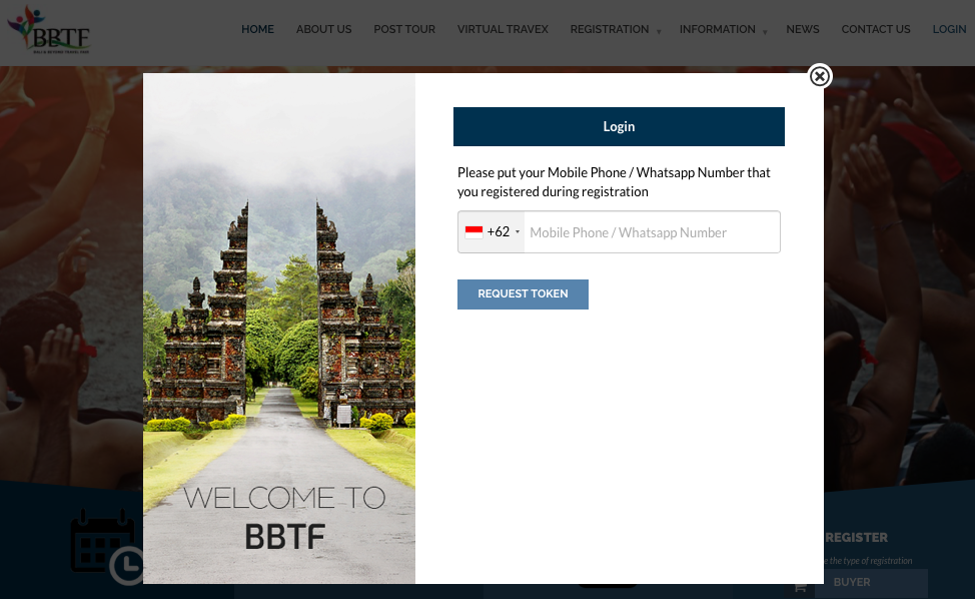
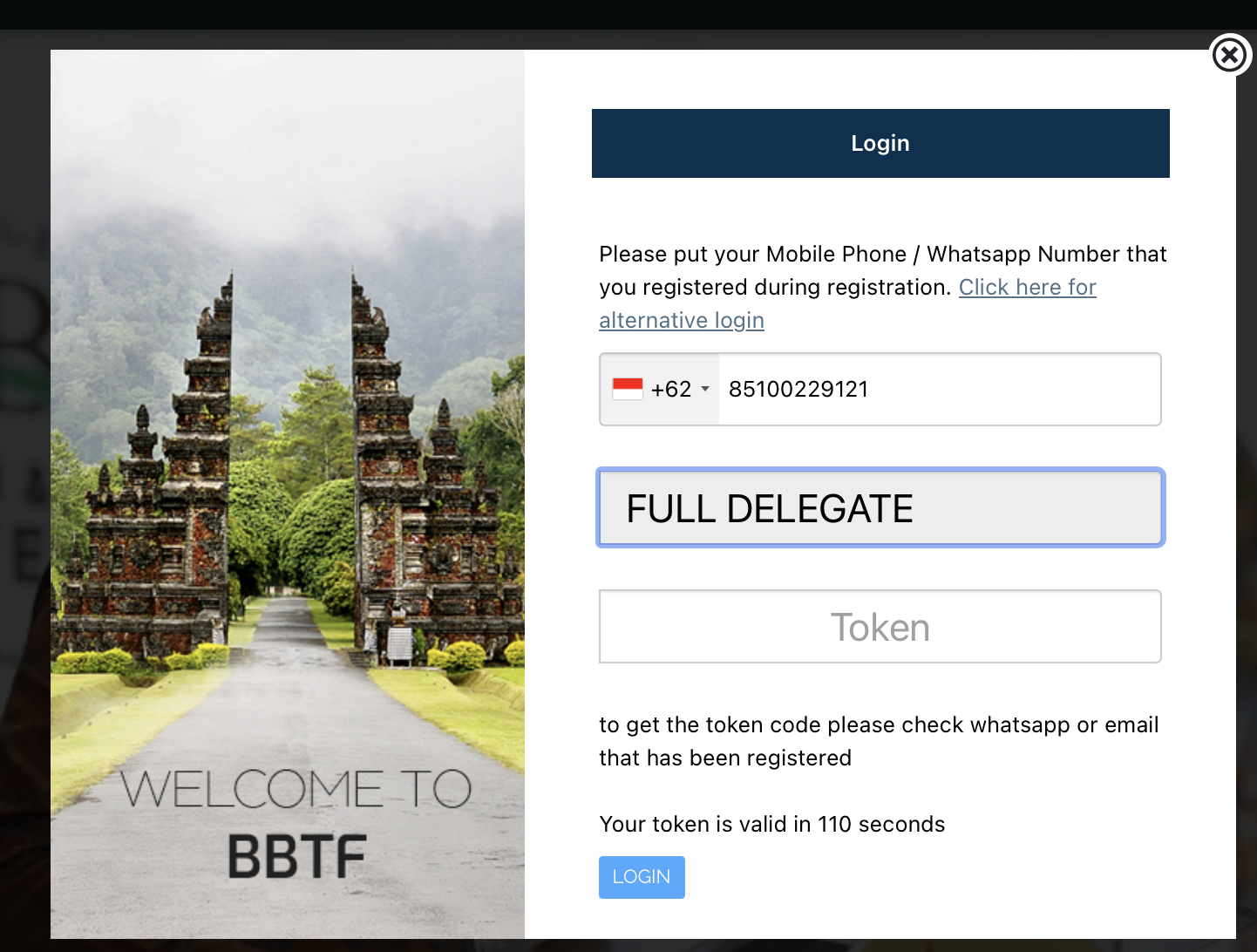
- Click here for login access to the appointment schedule
-
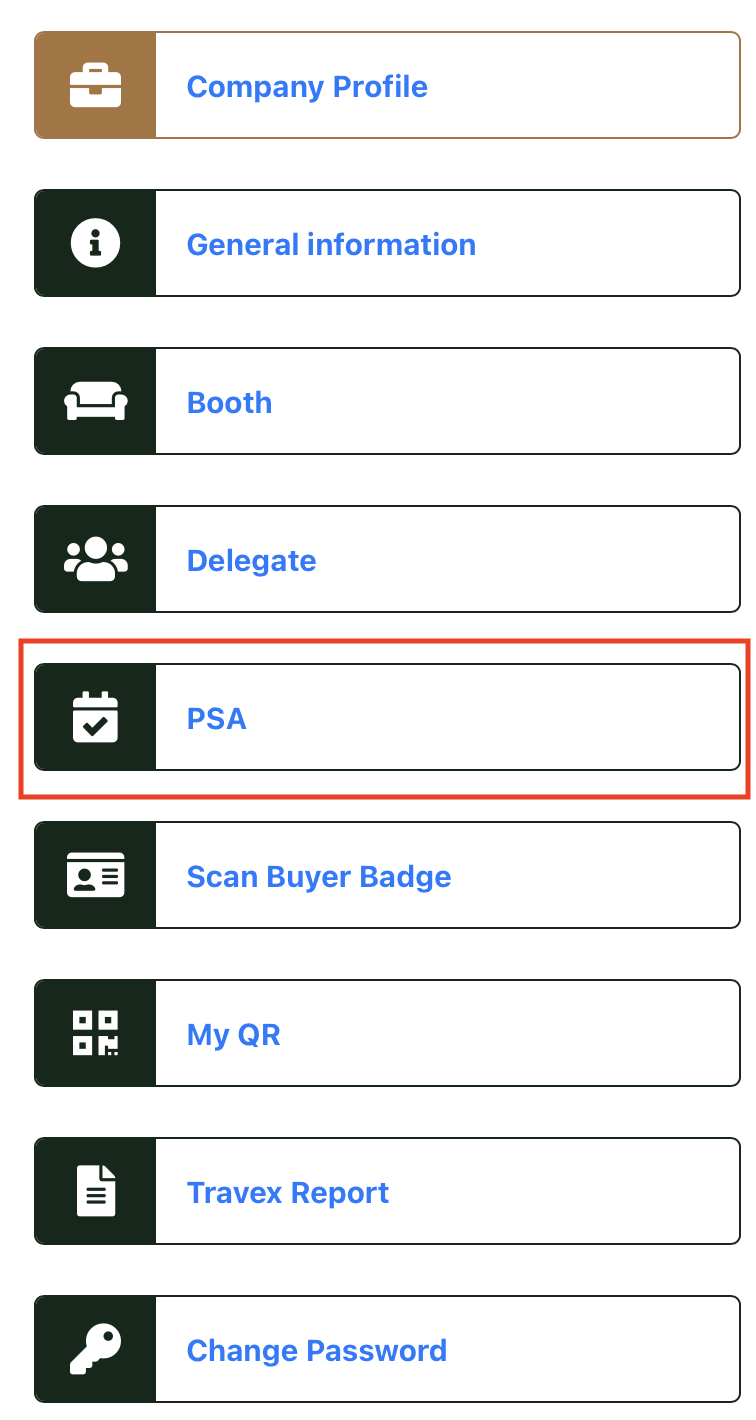
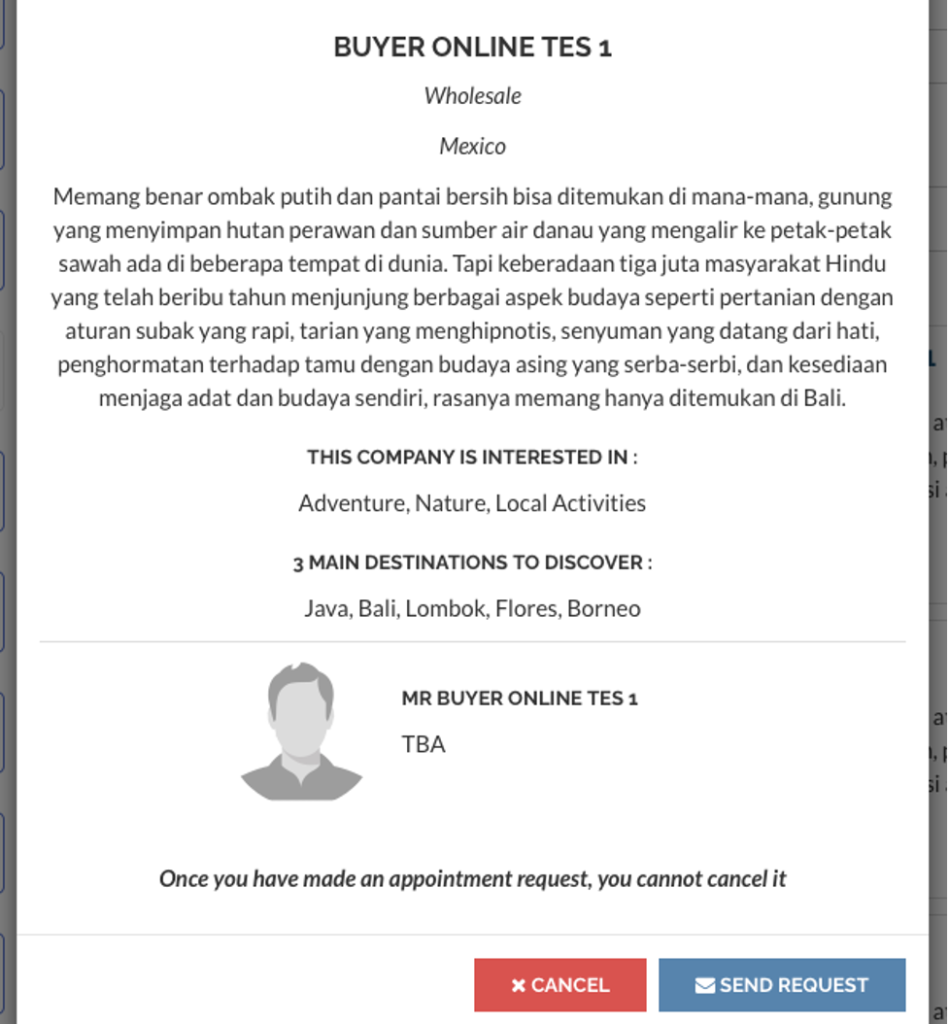
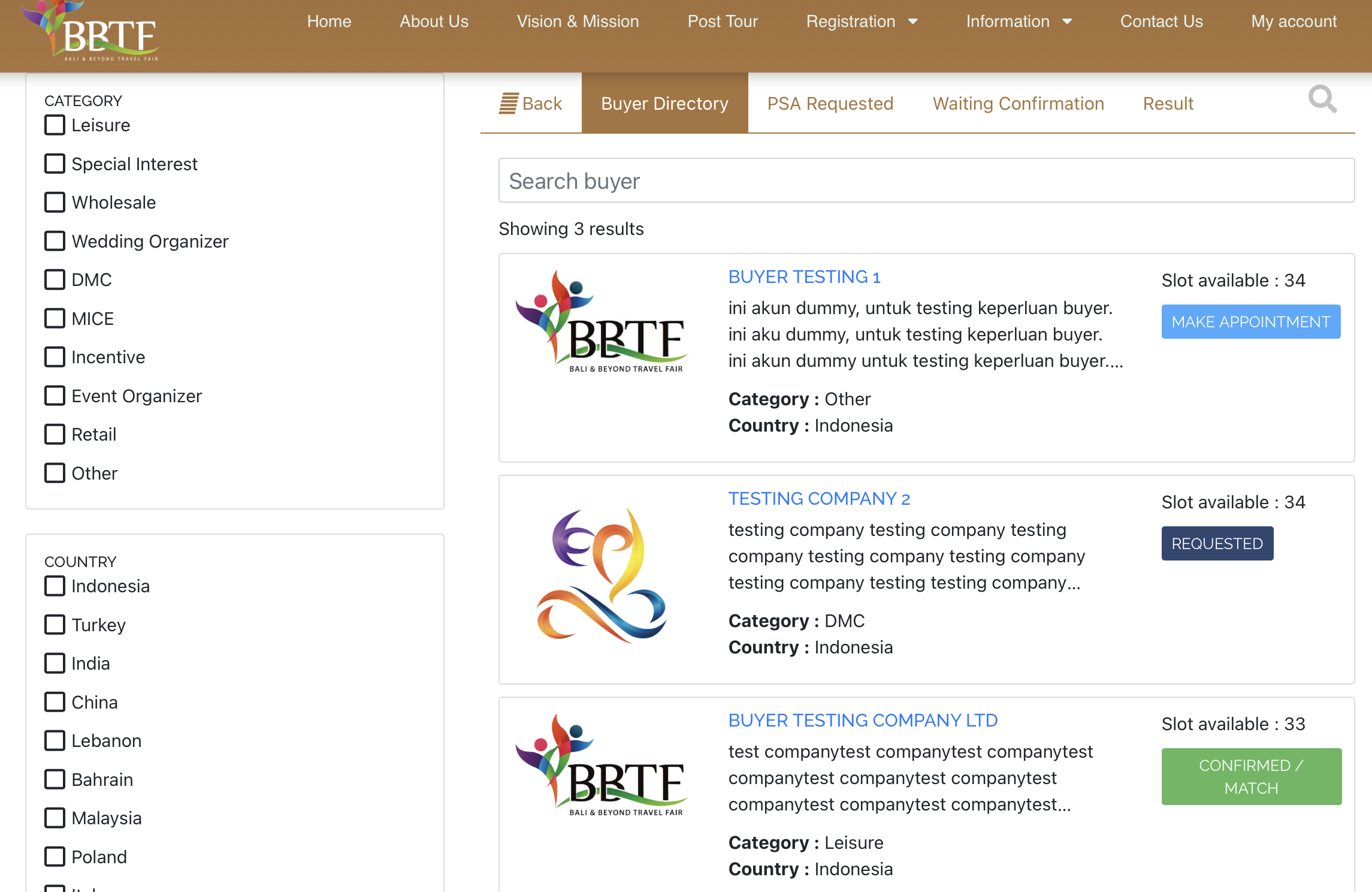 5. Click “Make Appointment” button to view the buyer profile
 7. PSA Request allows you to check the list of appointment requests from buyers


-
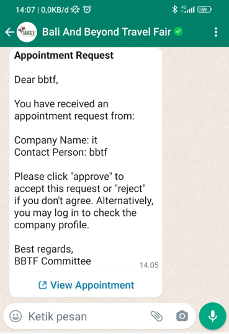
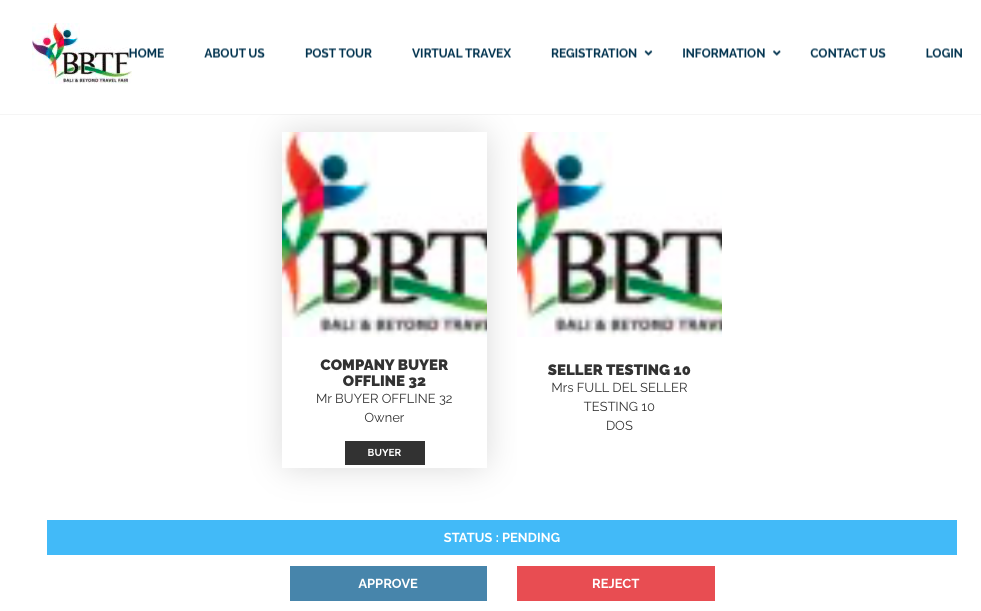
- Click the “View Appointment” link to Approve or Reject the buyer’s requests
-
11. Click the “Result” button to check the outcome of your PSA session.
 PSA result status details :
CONFIRM: Your appointment request has been received and confirmed by the selected buyer
REJECT: Your appointment request has been received and rejected by the selected buyer
NOT MATCHED: Your appointment request has been received by the selected buyer, but no time slot is available.
PSA result status details :
CONFIRM: Your appointment request has been received and confirmed by the selected buyer
REJECT: Your appointment request has been received and rejected by the selected buyer
NOT MATCHED: Your appointment request has been received by the selected buyer, but no time slot is available.